
Google Search Console is a handy free tool that gives you insight into how people find your blog on Google.
In order to connect your Pagecord blog to Google Search Console, Google will ask you to verify ownership of your domain. You can now do this by adding a Google site verification meta tag to your blog!
In order to connect your Pagecord blog to Google Search Console, Google will ask you to verify ownership of your domain. You can now do this by adding a Google site verification meta tag to your blog!
1. Add your blog to Google Search Console
Log into Google Search Console and add new property for your blog and choose the "URL prefix" option. Enter the full URL to your blog in the box and click Continue:

On the next page, under "Other verification methods", expand the HTML tag section. This will reveal the full meta tag as per the screenshot below:
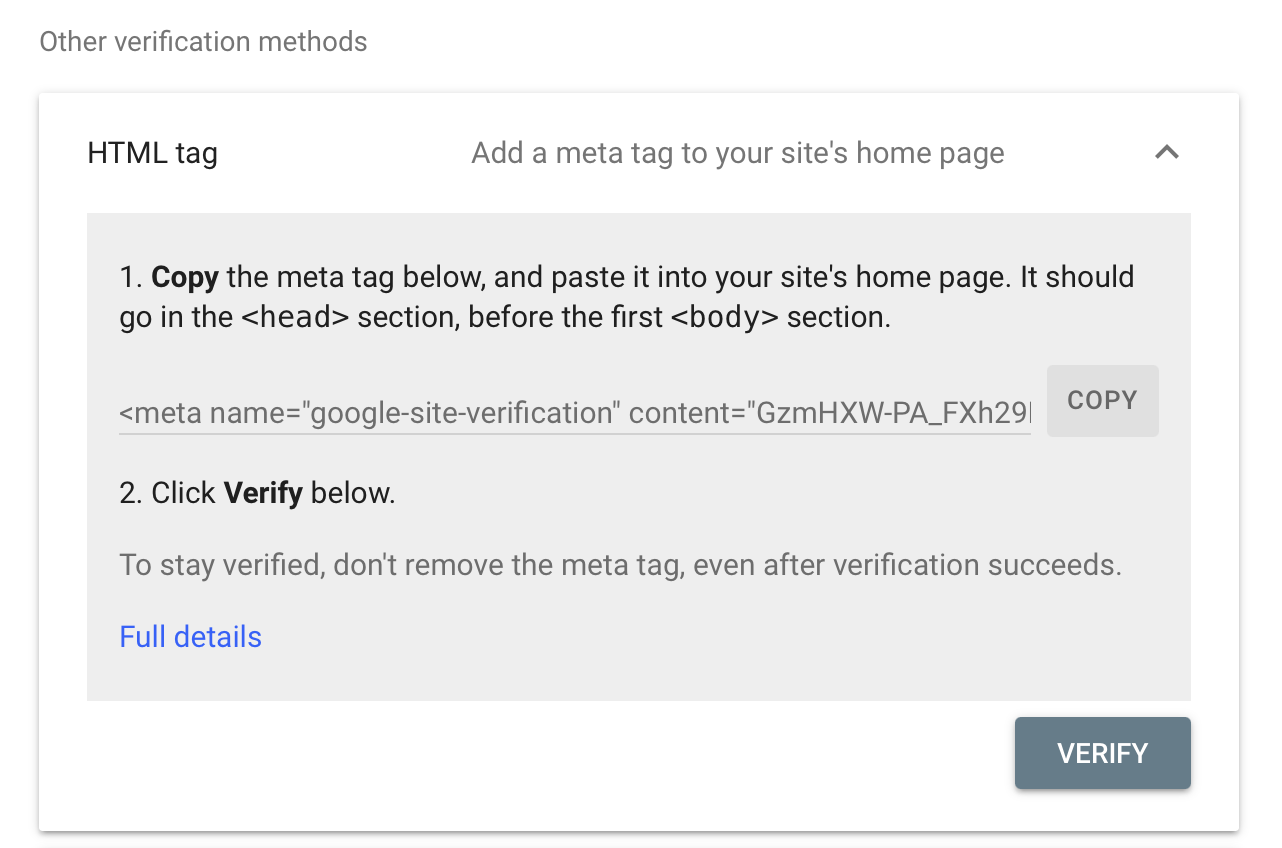
Copy this code, but we're only interested in the code that's in the content="" part. We'll get to that next.
2. Add the code in your Pagecord blog settings
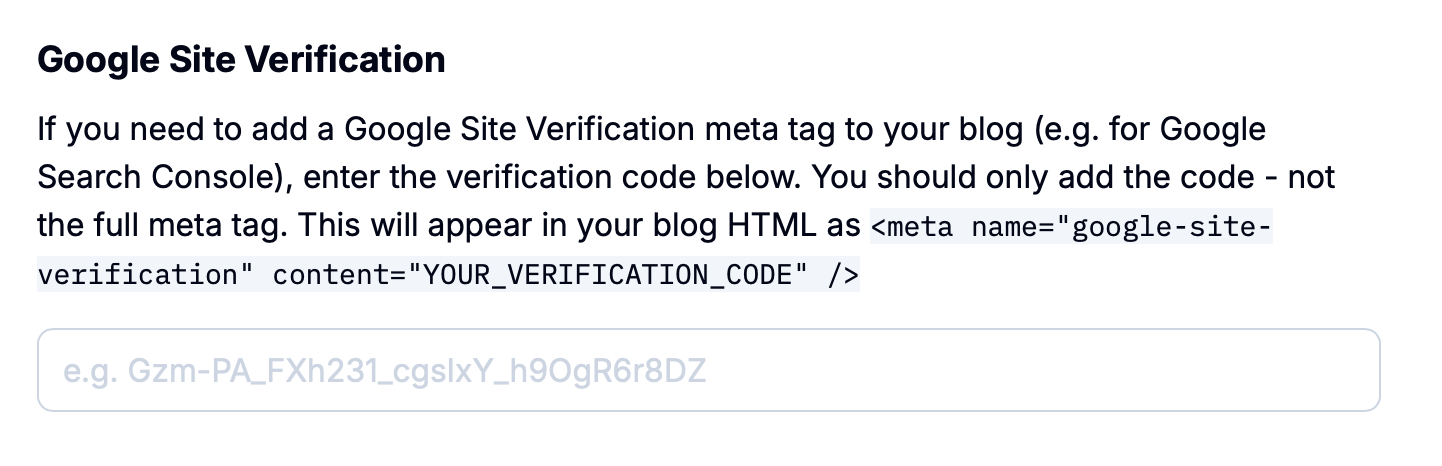
Log into Pagecord and visit Settings > Blog Settings. On the form you'll see a new section called Google Site Verification. Paste in the code you copied in the previous step. Don't worry if you paste the full meta tag – Pagecord will spot this and do the extraction for you ✨
3. Complete verification
Once you've added the value to your blog, head on back to Google Search Console and click Verify. If all went well, you should get a confirmation and your property will be ready to go!
